
Create New Environment
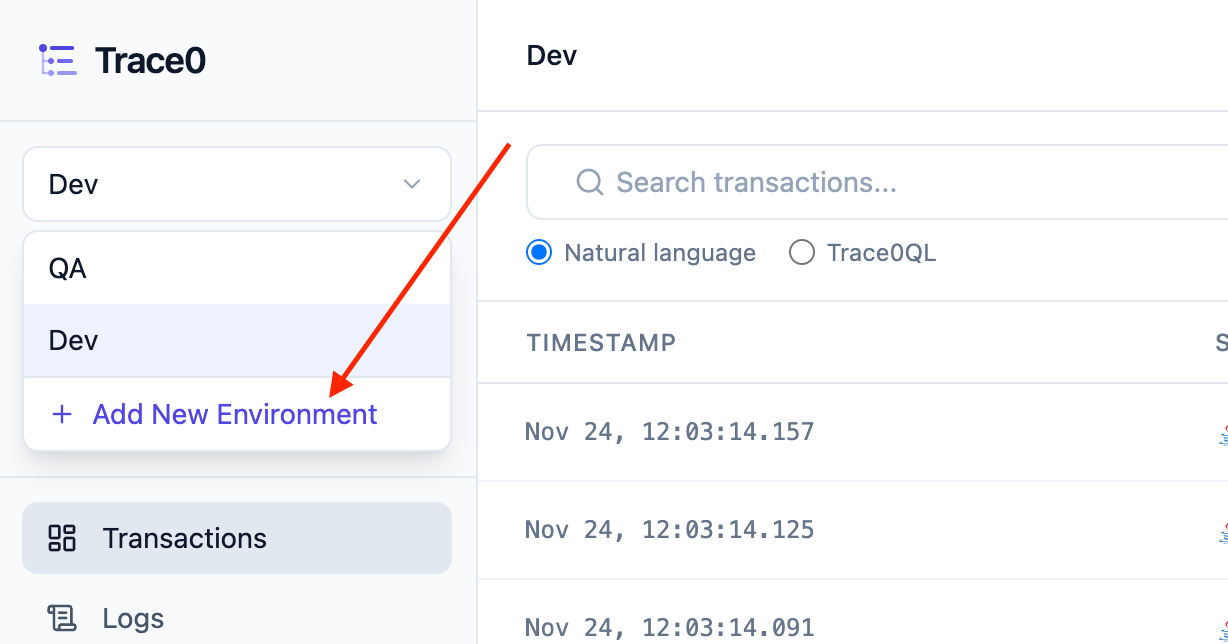
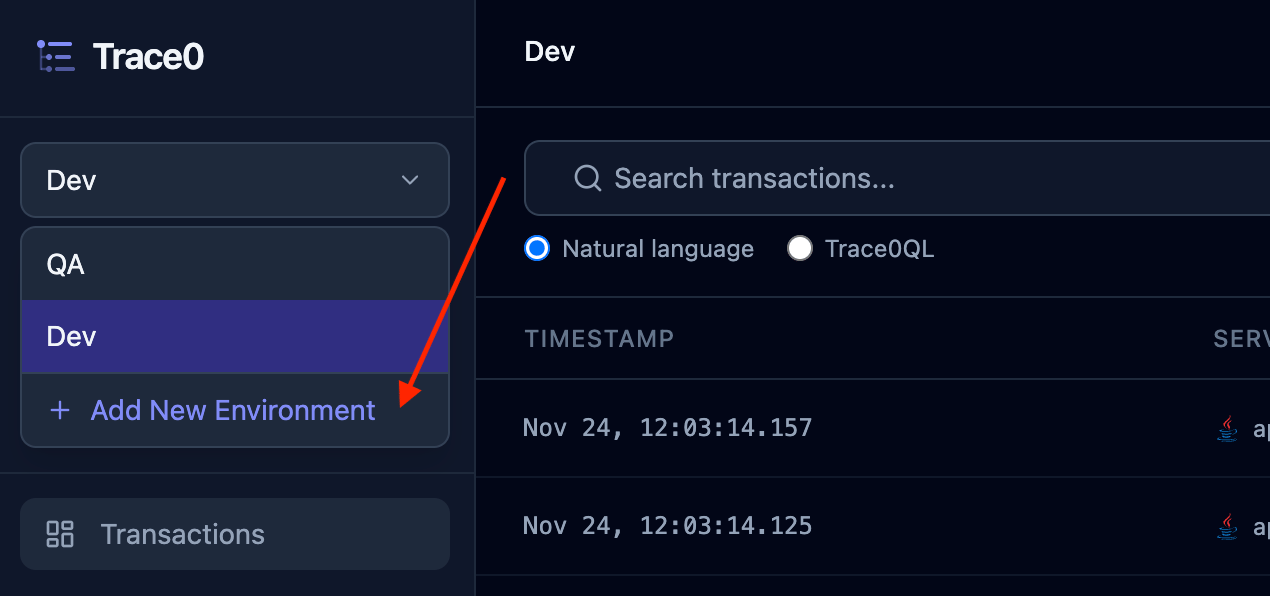
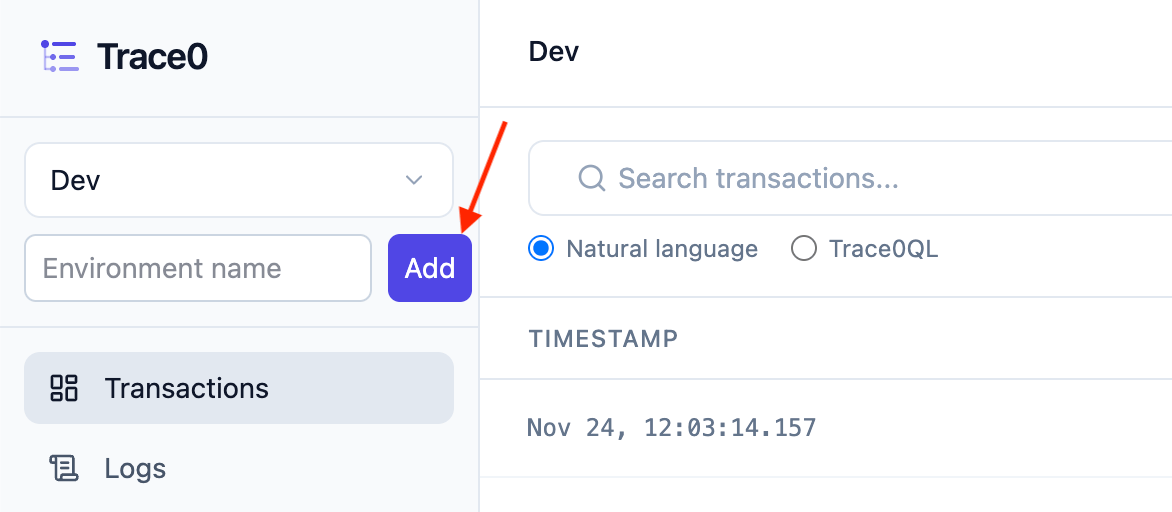
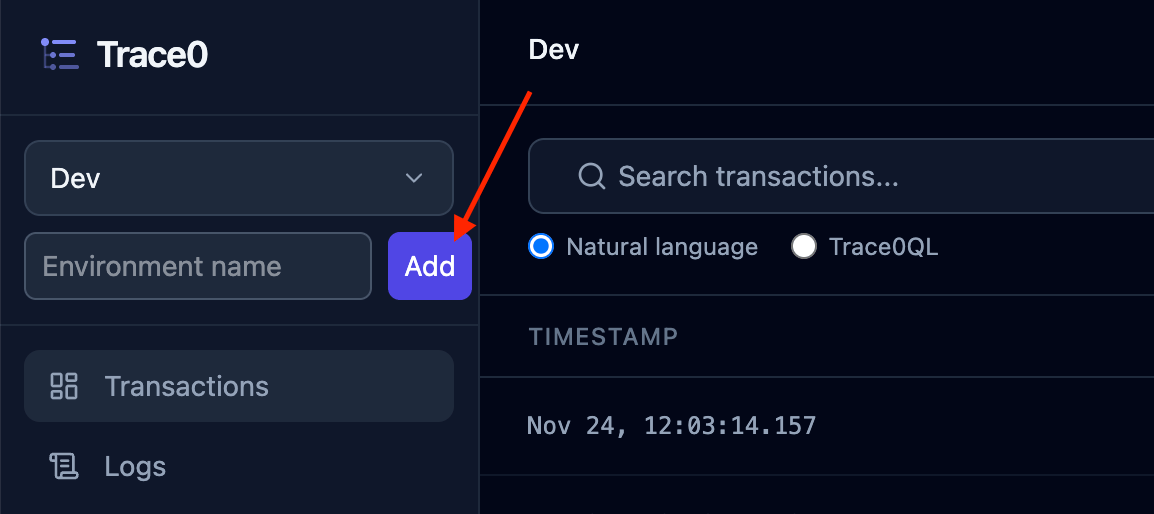
To create a new environment, click the environment dropdown on the top left sidebar, and clickAdd New Environment.
Prod), and click the Add button to create the new environment.
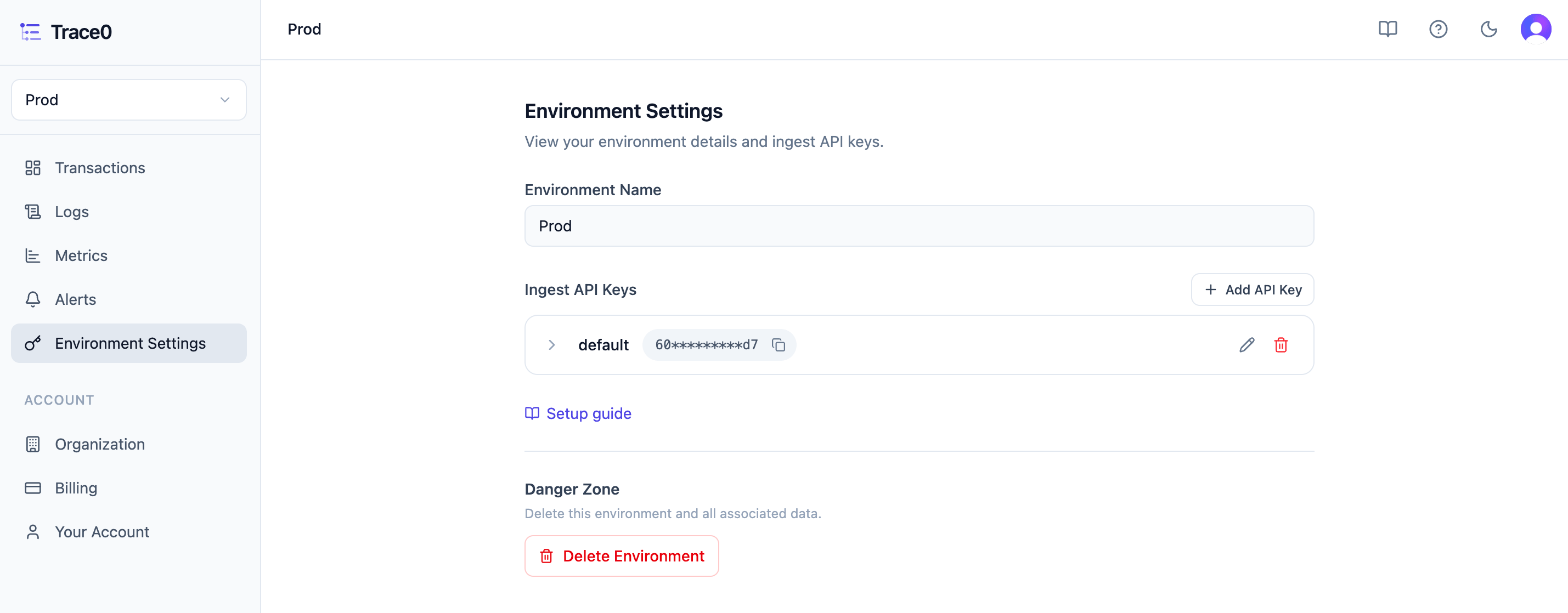
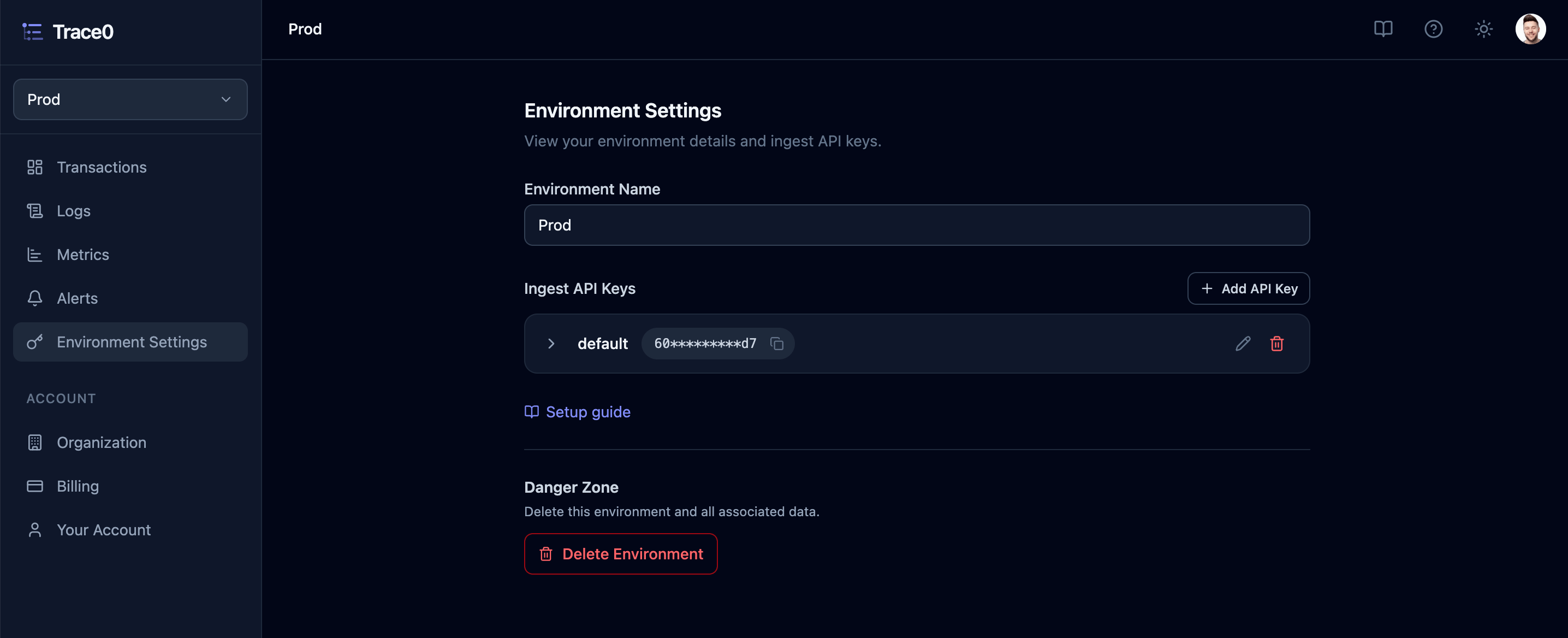
Delete Environment
To delete an environment, click theDelete Environment button in the Environment Settings screen. Note deleting an environment permanently deletes all data in this environment, and services in this environment will no longer be able to send data to Trace0.